Billing & Plans
Manage your subscription, upgrade your plan, view past invoices, and top up your AI wallet from Settings → Billing.
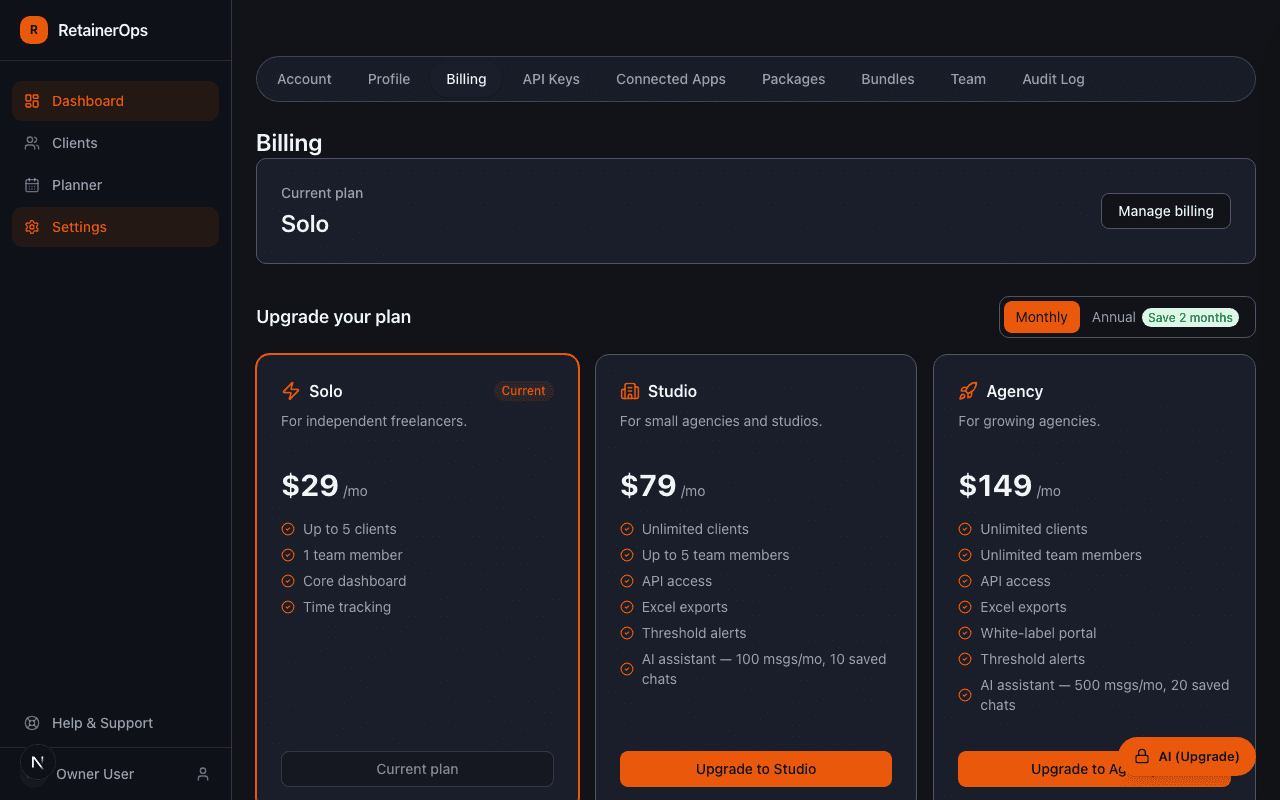
Viewing your current plan
Go to Settings → Billing to see your current plan, the next billing date, and a summary of what's included. From here you can upgrade, downgrade, or cancel.
Upgrading your plan
Click Upgrade to see all available plans. Plan changes take effect immediately. If you upgrade mid-cycle, you'll be charged a prorated amount for the remainder of the billing period.
See Plans & Pricing for a full feature comparison.
AI wallet top-up
Studio and Agency plans include a monthly message allowance for the AI assistant. When you reach your limit, you can top up your AI wallet with pre-paid credits.
- Credits are purchased in $5 increments ($5 = 500 credits)
- Each AI message costs 10 credits ($0.10)
- Credits roll over month to month — they don't expire
Top up from the AI Wallet section on the Billing page.
Invoices and payment history
Click Manage Billing to open the Stripe billing portal, where you can view all past invoices, update your payment method, and manage your subscription details.
Cancelling
You can cancel your subscription at any time from the Stripe billing portal. Your account remains active until the end of the current billing period. After cancellation, your workspace data is preserved for 30 days before being deleted.