Claude MCP Connector
The Claude MCP Connector lets you operate your entire RetainerOps workspace directly from Claude Desktop or claude.ai — no switching apps, no copy-pasting data.
What you can do from Claude
Once connected, you can ask Claude to perform any action in your RetainerOps workspace:
- "Show me all clients over 80% on their retainer"
- "Log 2 hours to Acme Corp for strategy review"
- "What tasks are overdue this week?"
- "Create a task for Globex: draft the Q4 plan, due Friday"
- "Which retainer is most profitable right now?"
- "Send a usage report to Acme's contact email"
Claude reads from and writes to your workspace in real time using the same data as the dashboard.
Connecting Claude Desktop
To add RetainerOps to Claude Desktop:
- Open Claude Desktop and go to Settings → Integrations
- Find RetainerOps in the connector directory and click Connect
- You'll be redirected to RetainerOps to authorize access
- Log in to your RetainerOps account and click Allow
- Claude Desktop now has access to your workspace
Connecting claude.ai
To add RetainerOps on claude.ai:
- Go to claude.ai and open Settings → Integrations
- Find RetainerOps and click Connect
- Complete the same OAuth authorization flow
How it works: OAuth authorization
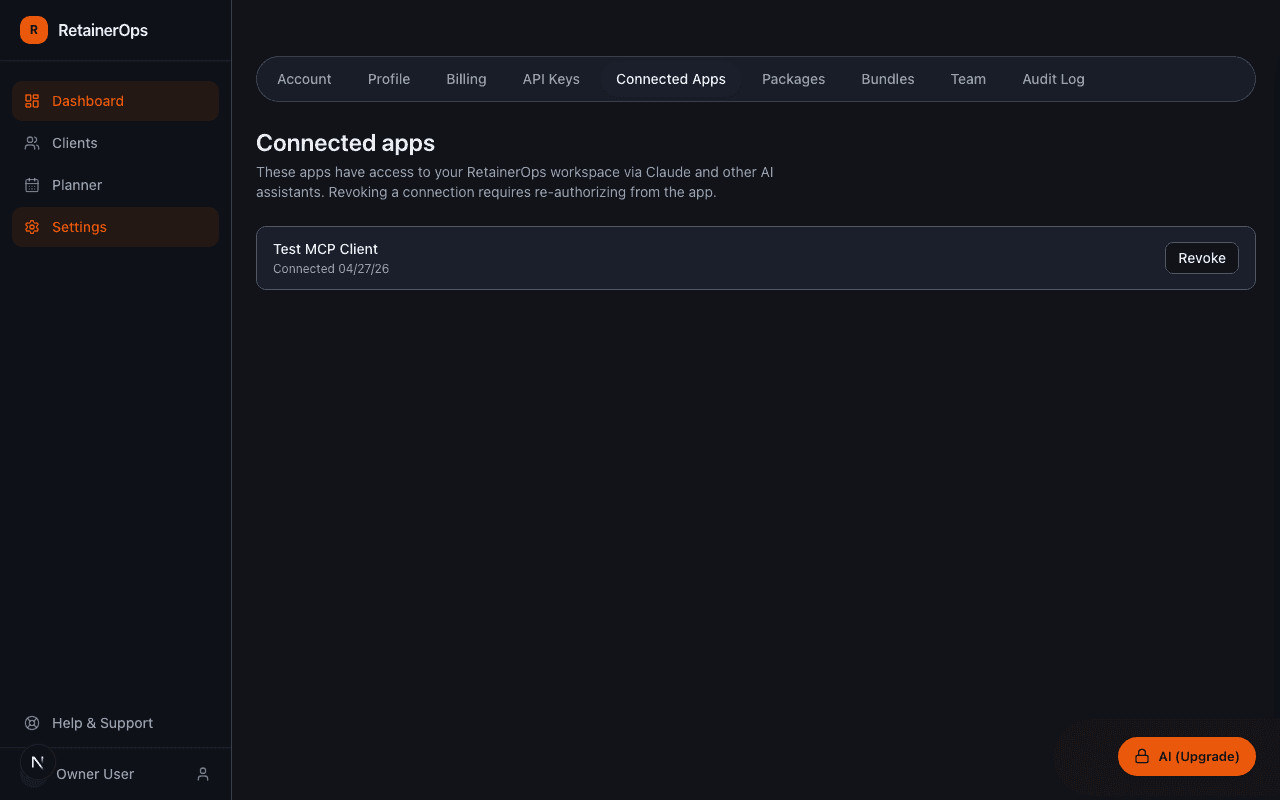
The connector uses industry-standard OAuth 2.0 with PKCE. When you connect, you authorize Claude to access your workspace on your behalf. RetainerOps issues a scoped access token — Claude never sees your password. You can revoke access at any time.
Available tools
Claude can access 18 tools in your RetainerOps workspace:
- Get workload, usage summary, recent activity
- List and search clients, get client detail
- Create and update clients
- Create, update, and change task status; add task notes
- Log time entries
- List package tiers; create package tiers
- Create projects and todos
- Get workspace users
Revoking access
To disconnect Claude from your workspace, go to Settings → Connected Apps and click Revoke next to the Claude connection. All active tokens are immediately invalidated.