Planner
The Planner gives you a calendar view of all tasks across every client — so you can see your full workload at a glance and manage scheduling in one place.
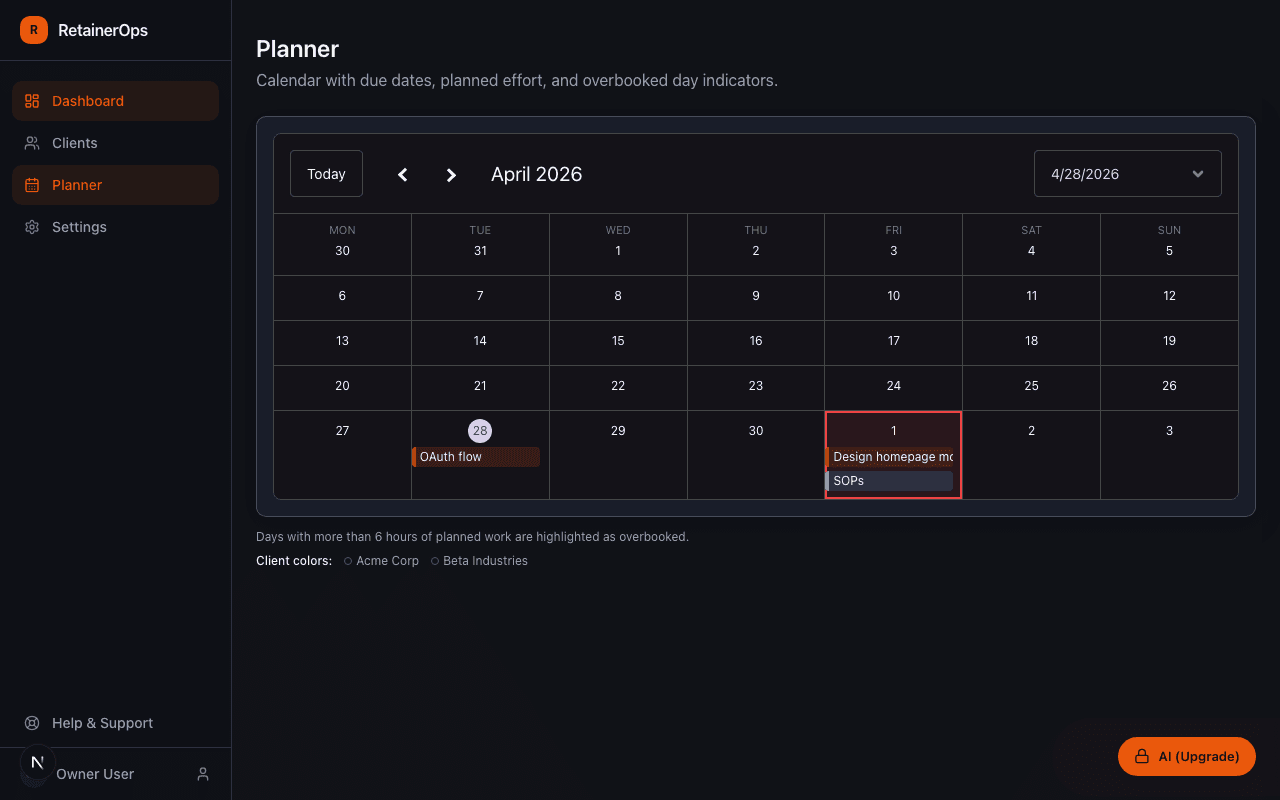
Using the Planner
Navigate to Planner from the main navigation. The calendar displays all tasks with due dates, color-coded by client. Each task shows its title and due time.
Navigating the calendar
Use the arrow controls to move forward and backward by week or month. The current day is highlighted. Tasks without a due date do not appear on the calendar — set a due date on any task to have it show up here.
Client color coding
Each client's tasks appear in that client's assigned color, matching the color you set on the client detail page. This makes it easy to see at a glance how your work is distributed across clients for any given week.
Rescheduling tasks
Click any task on the calendar to open its detail panel and update the due date. Changes are reflected immediately in the Planner view and on the client detail page.