Users & Roles
RetainerOps uses a role-based access model to control what team members and clients can see and do.
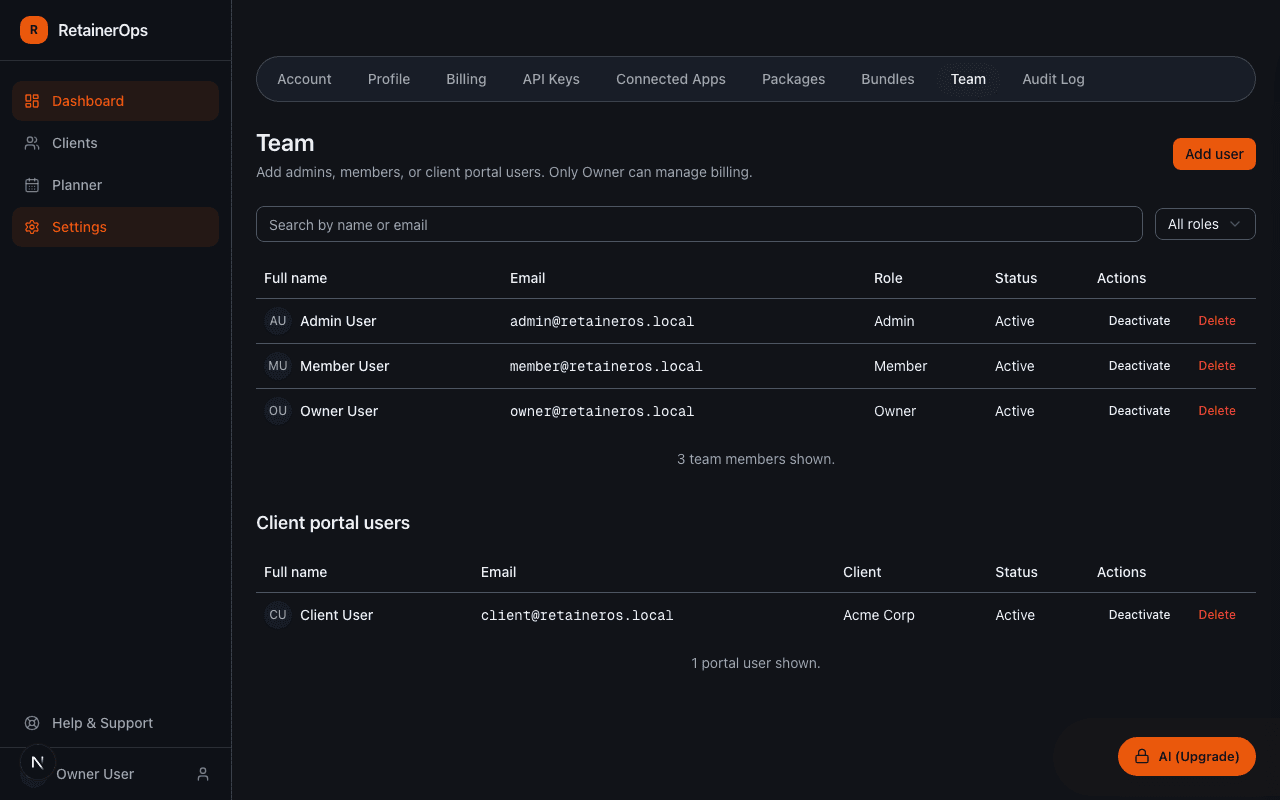
Roles overview
Owner
The account owner has full access to everything in the workspace — all clients, settings, billing, and team management. There is one owner per workspace. Ownership can be transferred from Settings → Account.
Admin
Admins have the same access as the owner with two exceptions: they cannot change billing information and cannot delete the workspace. Use Admin for trusted team members who manage day-to-day operations.
Member
Members can view and interact with all client data — tasks, time entries, and reports — but cannot access settings, billing, or team management. Use Member for individual contributors who log time and update tasks.
Client
The Client role is for your client contacts who access the client portal. Client users can only see data for their own client record. They cannot see other clients, settings, or any internal workspace data.
Inviting team members
Go to Settings → Users → Invite Member. Enter their email address and select a role. They'll receive an invitation email with a link to create their account and join your workspace.
Team size limits
The number of team members (Owner + Admin + Member roles) is limited by your plan:
- Trial / Solo — 1 user (owner only)
- Studio — up to 5 users
- Agency — unlimited users
Client role users do not count toward this limit.